
The board
Stop losing track of what your AI is doing.
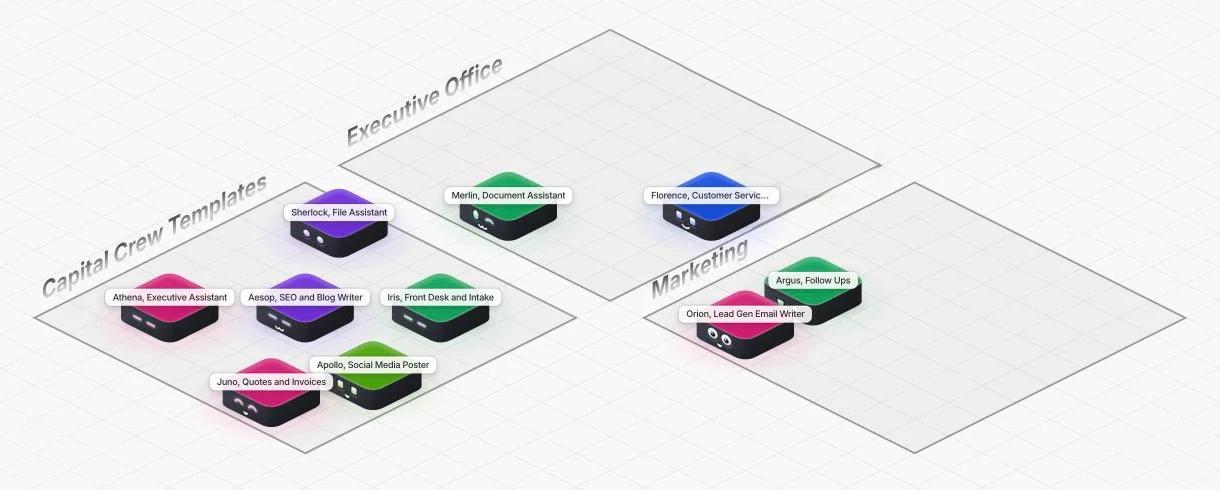
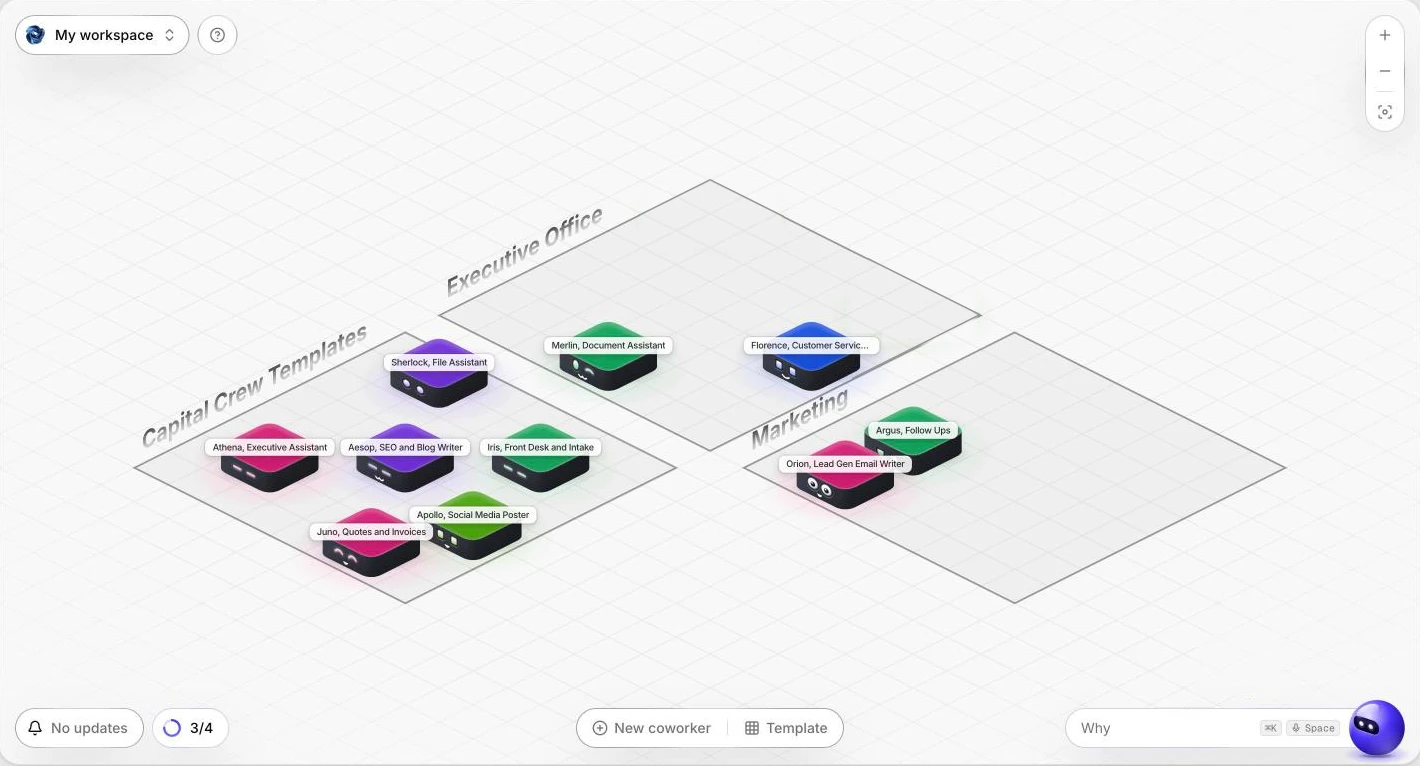
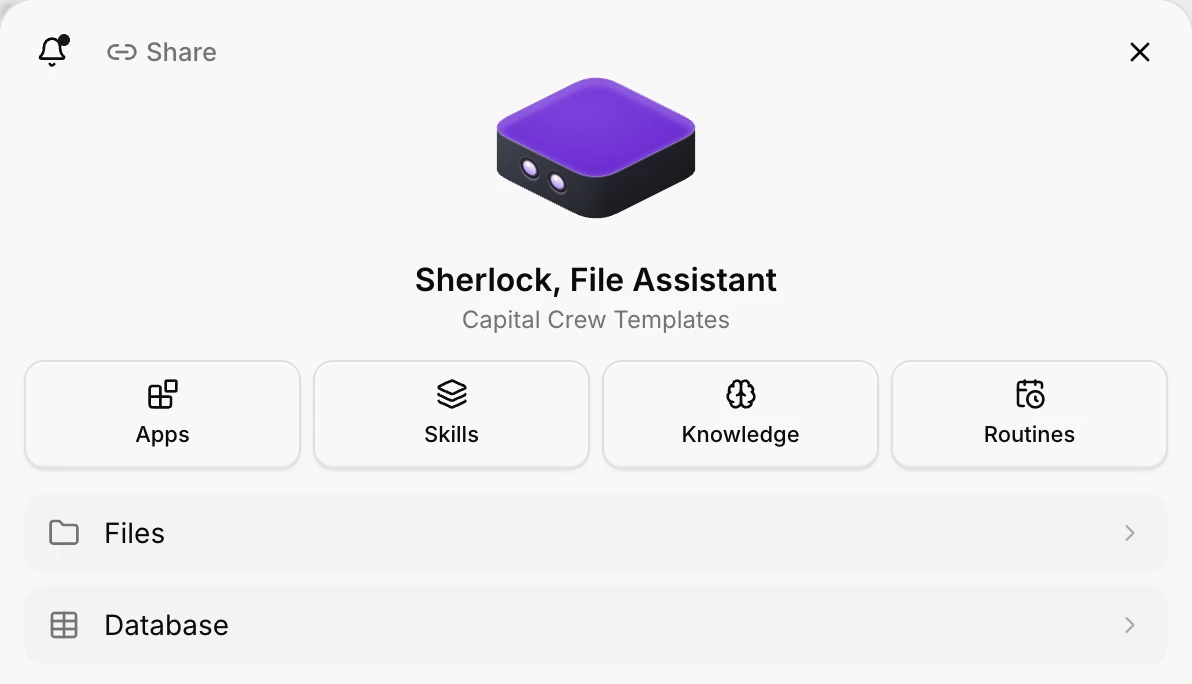
Crew board
Example, made up dataAsked
Your requests
- You
Chase missing documents for the spring returns
- You
Find last year's engagement letter for the Lees
Working on it
In progress
 Argus
Clients still missing a form
Sorted by due date
 Sherlock
Searching for the Lee engagement letter
To approve
Waiting for you
- Argus
Gentle nudge to Priya about her 1099s
ApproveEditDecline  Merlin
Plain summary of the new office lease
ApproveEditDecline
Done
Approved, with time
 Athena
Meeting recap you sent to the partners
- Sherlock
Found last year's letter, new draft saved
An accounting firm on the board. Example, made up data, not a customer screen.
Three parts
Everything on one screen, nothing to scroll back for.
Who is working on what
Every request is a card with a name on it. You can see at a glance that Juno has the quote and Argus is checking last week's open ones.The approval list
Every finished draft lands here, waiting for you. Approve, edit or decline. Nothing on this list has gone out.A history of what was done
Approved work moves to Done with the time you approved it, so you can check what went out last Tuesday without digging through sent mail.
Board or chat
Why a board beats a chat window.
| A chat window | The crew board | |
|---|---|---|
| Where the work is | Scattered through one long conversation | One card per job, in one place |
| Who is doing it | Always the same chat, doing one thing at a time | A named employee for each kind of job |
| What needs you | You scroll back to find it | An approval list with every draft |
| What was done | You search old messages | A Done column with the time you approved it |
| Remembering your business | You explain it again in each new chat | Each employee is set up with your details in onboarding |
Already paying for an AI chat? Here is how the two compare.
A day on the board
How you would actually use it.
The board is the Crew web workspace. Open it in your browser in the morning, and you see four columns: what you asked for, who is working on it, what is waiting for you, and what is done. Each card carries the name of the AI employee who has it, so a glance tells you that Iris is answering the new inquiry and Juno is working out the quote from your rate sheet.
For example, a print shop owner checks the board between two press runs. Two drafts are waiting in To approve: a reply to a poster inquiry and a thank you for a new review. She approves the first, changes one word in the second, and sends both. Both cards move to Done, stamped with the time. The quote Juno is still working on stays in its column until it is ready.
Nothing on the board happens behind your back. A card in Working on it is a draft in progress, not a message on its way to a customer. The only way anything leaves your business is that you approve it and send it.
FAQ
Questions about the board
Is the board an app I have to install?
No. The board is the Crew web workspace, opened in your browser. We open it with you on your first onboarding call, so you do not set anything up alone.
Can I check the board from my phone?
The board opens in a browser, so a few minutes between jobs is the idea. We check it on your phone with you in onboarding.
Can my office manager see the board too?
Tell us who should see it, and we set it up that way with you. Who can approve what is your call.
Is the board in the picture real?
The first two pictures are real screens from the Crew web workspace, with our template crew. The card layout under them is an example with made up data. We show you your own board, with your own work on it, during onboarding.
What happens to a card on the board after I approve it?
It moves to Done with the time you approved it. You send the message yourself, and the card stays in the history so you can check later what went out.
Tell us what you would hand off first.
A real person from our team reads it and replies by email. We tell you honestly whether the crew fits, and what it would cost for a business your size, before any call.